Using the Windows Subsystem for Linux to create an ext4 partition for Tesla's Dashcam/Sentry Mode
I recently wanted to set up the Dashcam/Sentry Mode in my new Model Y. After doing some research on the best removable storage device to use, I settled on the Samsung T5 SSD. While researching, I found a number of folks saying that if I was using Windows, I'd need to download a third-party utility to format the drive as FAT32 since Windows 10 only supports FAT32 partition sizes up to 32GB. After doing a bit more digging, I found some other folks saying that formatting the drive as ext4 (a Linux-only filesystem format) also worked.
I couldn't help but think that this sounded like a perfect job for the Windows Subsystem for Linux (WSL). All in all, I went from not having the WSL installed to having a new SSD working with Dashcam/Sentry Mode in under 15 minutes with no third-party tools required! Here's how:
-
Install WSL 2
I followed Microsoft's official documentation and selected Ubuntu as my distribution of choice.
-
Plug in the drive to your computer
Nothing too fancy here.
-
Open an elevated ("As Administrator") PowerShell prompt and run the following commands:
wmic diskdrive list briefThis lists the available drives in Windows. My SSD had a DeviceID of
\\.\PHYSICALDRIVE3.wsl --mount <your disk's DeviceID> --bareThis will mount the drive in WSL.
wslThis will open a WSL terminal. You can exit this terminal at any time by typing
exit. -
In the WSL terminal, run the following commands:
sudo fdisk -lThis will list all drives and partitions accessible to WSL. You should see your newly mounted SSD appear here. If you're not sure which device/partition is which, you can always unmount the SSD by running
wsl --unmount <your disk's DeviceID>in an elevated PowerShell prompt. And re-running the command above to see which drive disappeared. Note that you'll need to re-mount it again before continuing.My SSD was accessible at
dev/sdcand had a singledev/sdc1partition.sudo fdisk /dev/sdcThis will begin the process of formatting the drive. Once
fdiskis running, you can execute the following commands. Note thatfdiskruns all commands in memory until you write them to disk.dThis deletes the current filesystem on disk.
nThis creates a new partition.
pThis makes the new partition a primary partition.
1This is the primary partition's partition number.
t
83
This changes the partition type to "Linux"
wThis writes the changes to disk (please note that this is a destructive action and cannot be undone).
fdiskshould now output the name of your new partition. In my case, this partition was still calleddev/sdc1mkfs.ext4 /dev/sdc1This formats the new partition to ext4. Be sure to replace
dev/sdc1with your new partition's name. This command might take a few minutes to complete, but once it's done, you'll have a new ext4 partition! -
Return to your elevated PowerShell prompt and run the following commands:
wsl --mount <your disk's DeviceID> --partition 1You may have to unmount the drive first by running
wsl --unmount <your disk's DeviceID>. From here, the drive should now be viewable in Windows Explorer. From the sidebar in Windows Explorer, select Linux, then choose your distribution (mine was Ubuntu), and find the location of your mounted partition. Per the documentation, the default location is/mnt/wsl.Open your mounted partition and create a new
TeslaCamfolder at its root. You may also see a pre-existinglost+founddirectory. That's not important for this exercise, but you can read more about what it's for here.Once you have the
TeslaCamfolder created, that should be it! You can run the following command in your elevated PowerShell prompt to unmount your drive:wsl --unmount <your disk's DeviceID> -
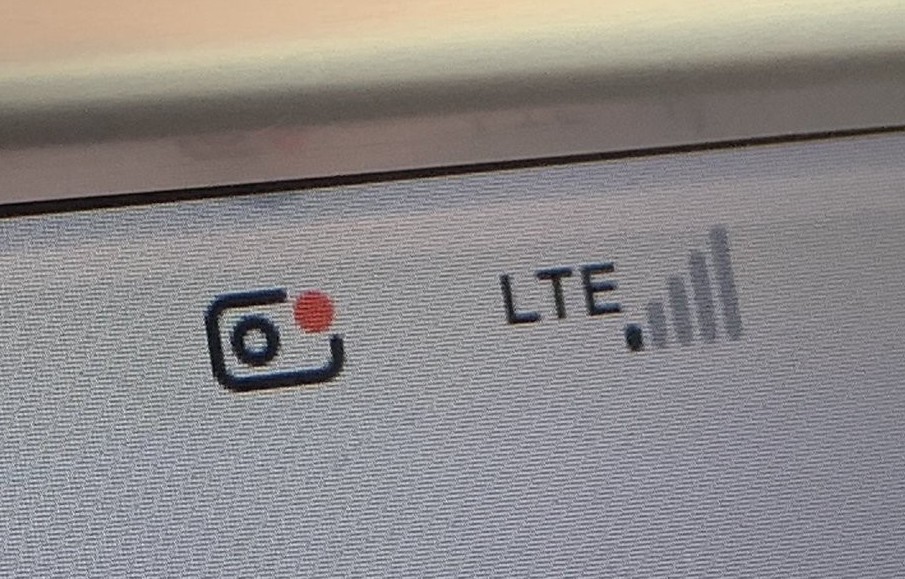
Plug your newly formatted drive into your Tesla and make sure it's recognized:
You should see the following icon appear:
-
That's it!
I hope this guide was helpful for others who are looking to format a SSD for their Tesla without requiring third-party tools! Thanks as well to the WSL Team at Microsoft who (apparently) just recently shipped the support for ext4 that made this possible!